A cropped photo has no single maximum print size. Its remaining pixels give you a range of enlargements to consider; the detail in the picture and the way people will view it determine which is worth printing.
For example, a 3000 × 2000 pixel crop makes a 10 × 6.7 inch image at 300 pixels per inch, or a 15 × 10 inch image at 200 pixels per inch. Those are two ways to spread the same pixels over paper. They are not a promise that one will look sharp and the other will not.
Start by calculating a candidate size. Then settle the paper shape and test a small, important part of the picture at the enlargement you actually intend to use.
Start with the pixels in the finished crop
Use the cropped image's width and height in pixels, before any enlargement that adds pixels. Keep the original file, make the composition you want, and read the resulting dimensions in your editor. The camera's megapixel count no longer describes all the pixels available to this print.
A hypothetical 6000 × 4000 pixel image contains 24 million pixels. Crop it to 3000 × 2000 and you retain 6 million: half the width multiplied by half the height is a quarter of the area. At the same print density, each edge of the print will also be half as long.
If the file has already been enlarged, find the dimensions before that step. Resampling changes pixel count; changing the resolution setting alone need not. In Photoshop's Image Size dialog, leave Resample unchecked when exploring print dimensions without adding pixels. Adobe's resizing tutorial explains that distinction.
You do not need to apply the camera's crop factor to this calculation. That describes framing relative to another sensor format; crop factor and pixels on the subject are different quantities. For printing, use the dimensions of the picture you have.
Turn those pixels into candidate sizes
Pixels per inch, or PPI, describes how tightly the image pixels are placed on paper. Spread the same picture over a wider area and fewer pixels fit into each inch.
Print dimension in inches = pixels along that edge ÷ PPI.
For a 3000 × 2000 pixel image, the choices below preserve the whole crop and its proportions. These are calculated sizes, rounded for readability, rather than quality grades.
| Image density | Image size in inches | Image size in centimeters |
|---|---|---|
| 300 ppi | 10 × 6.7 | 25.4 × 16.9 |
| 240 ppi | 12.5 × 8.3 | 31.8 × 21.2 |
| 200 ppi | 15 × 10 | 38.1 × 25.4 |
| 150 ppi | 20 × 13.3 | 50.8 × 33.9 |
To check a size you already have in mind, reverse the division: pixels ÷ printed inches = PPI. A 3000-pixel edge printed 15 inches wide gives 200 ppi. The 2000-pixel edge printed 10 inches tall gives the same result. For centimeters, divide the physical dimension by 2.54 first to convert it to inches.
Count the image area, excluding blank borders. Check both edges: different answers usually mean the proposed print shape does not match the image shape.
The printer's advertised DPI is a separate measure of its dot placement. Do not divide your image pixels by that number. Epson's driver explanation distinguishes the printer's much finer dot grid from the image's input PPI.
Decide whether the photo fits or fills the paper
When the photo and paper have different proportions, keeping the whole picture requires borders; filling the area requires another crop. Choose that layout before treating a pixel calculation as final. WhiteWall's sizing guide likewise recommends considering aspect ratio when choosing the print format.
Our 3000 × 2000 crop has a 3:2 shape. A landscape 20 × 16 inch print has a squarer 5:4 shape. Here are the two choices, assuming the whole sheet is available for the layout:
- Fit the complete picture: print the image 20 × 13⅓ inches at 150 ppi. Centering it on the sheet leaves a 1⅓-inch border above and below.
- Fill the 20 × 16 area: crop the file again, to 2500 × 2000 pixels. The density becomes 125 ppi. You lose 500 pixels of total width, positioned wherever the composition allows.
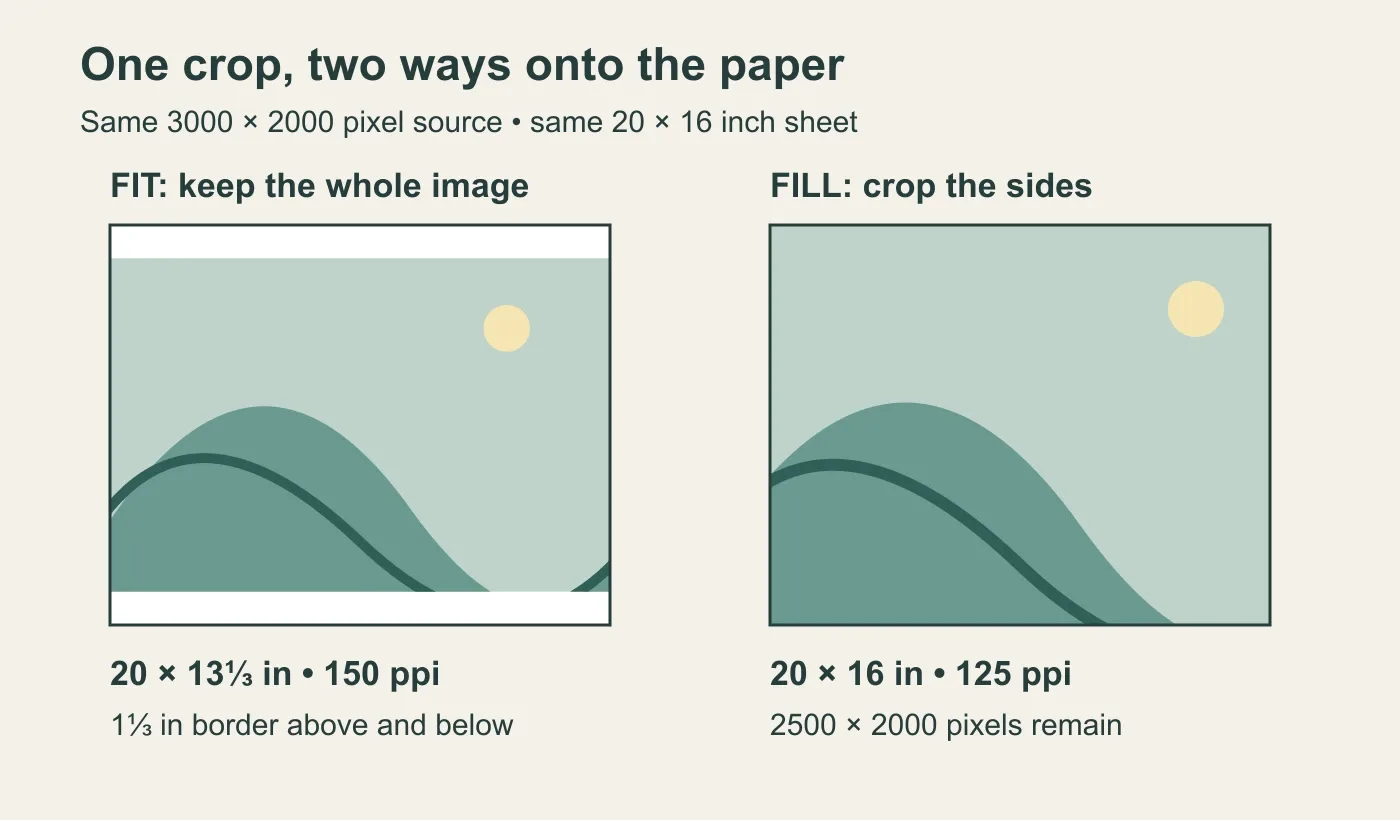
Original diagram using abstract contours, not a photograph. Both paper outlines have the same scale; the second layout enlarges the image more and removes its sides.
Dividing 3000 by 20 gives 150, while 2000 divided by 16 gives 125. That mismatch is your warning to make a layout decision. Stretching the picture independently in each direction would change its proportions.
A custom print size that matches the crop is another option. For a standard frame, check its visible opening and the lab's border or trimming preview: the paper dimensions alone may not describe the visible picture.
Choose a starting size for the way the print will be seen
For a print held close, 300 ppi is a useful starting calculation. It is neither a guarantee of good detail nor a hard limit on enlargement. Adobe's print-resolution guidance uses 300 ppi for close viewing and allows lower densities for larger prints seen farther away.
That makes the 10 × 6.7 inch option a sensible first candidate for our 3000 × 2000 crop. If you want 15 × 10 inches, calculate its 200 ppi and test that enlargement. A picture with blurred subject detail will not become crisp simply because the smaller version reaches 300 ppi; conversely, a lower-density print may suit the photograph well.
For a wall display, consider where viewers will stand. Double the print's dimensions and double the viewing distance, and the picture occupies the same angle in front of the viewer. This explains why a larger print can tolerate wider spacing between its image pixels when seen farther away. People may still walk up to a wall print, so inspect that situation too if it matters to you.
Look at the detail that carries the photograph: an eye, fine lettering, leaves, or a textured surface. Decide what you need that detail to do at the intended distance. Do not let a density number make that aesthetic decision for you.
Check the print provider's file requirements before preparing the delivery file. If it requests resampling to a particular density, that is an output-preparation step. The larger pixel count does not establish that more original scene detail was captured.
Test a small part at the full print's scale
A small detail printed at the intended enlargement can help you judge a large print without ordering the whole thing. A small print of the entire photograph uses a different enlargement and cannot answer the same question.
Use the 2500 × 2000 pixel version planned for a 20 × 16 inch image as an example:
- Prepare the full-size version first. Set the final crop and intended physical dimensions. Apply the processing you plan to use for the print.
- Select a representative detail. Include important fine detail and an edge where softness would bother you. At the example's 125 ppi, a 6 × 4 inch region contains 750 × 500 original pixels. Copy that region into a separate proof file without changing its scale.
- If you have resampled, use the prepared file's density. A full version resampled to 300 ppi contains 6000 × 4800 pixels. Its 6 × 4 inch detail is 1800 × 1200 pixels. Use that detail from the prepared version so the proof also includes the effect of the enlargement process.
- Print the detail exactly 6 × 4 inches. Use the intended provider, paper and process where possible. Prevent automatic fitting or filling from changing that size. A known-length line in a spare margin, checked with a ruler, can help confirm the scale.
- Judge it from the intended distance, then closer. Check whether the subject detail and processing look acceptable for this picture. A proof made with a different printer or paper gives a less direct preview of the final result.
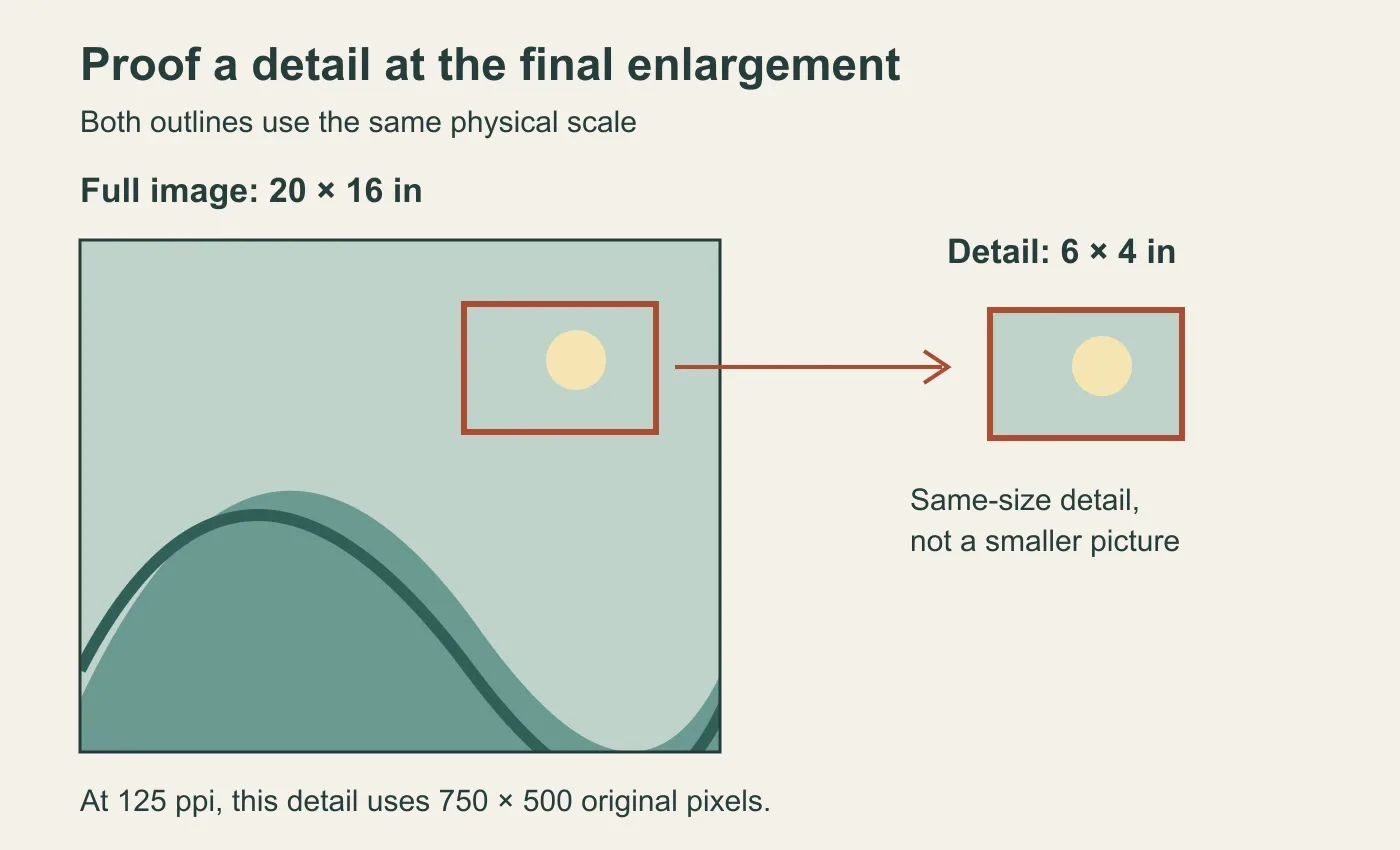
The extracted detail stays the same physical size as it has in the large print. This constructed diagram explains the proof layout; it does not simulate print sharpness.
An on-screen check can help select the region, but screen zoom alone is not a physical proof. Adobe describes Photoshop's Print Size display as approximate and dependent on the monitor in its print-resolution guidance.
If the proof disappoints, try a smaller image size, restore some of the original crop, or keep more of the composition by using borders. You can also compare a differently processed enlargement, but judge its result before committing to the full print. If the detail already works at the distance that matters, there is no need to reject the size solely because its native PPI is below 300.
If the proof's detail holds up but the whole print looks darker than the file did on screen, the size is not the problem. Why prints look darker than the screen explains the usual cause, a screen far brighter than paper can be, and how to match the two.
Before sending the file
The delivery file should match your chosen image area and the provider's instructions. Check the final crop, the pixel dimensions after preparation, the intended physical image size, and the order preview's treatment of borders and trimming. Keep the original and your prepared print version separately.
For our 20 × 16 example, the decision is now concrete: keep the whole 3:2 crop with borders at 150 ppi, or accept a tighter 5:4 crop at 125 ppi and proof that enlargement. Order the version whose composition and printed detail satisfy you at the intended viewing distance.
How this guide was made
This guide combines primary Adobe, Epson and WhiteWall documentation with Afterlight's reproducible calculations for hypothetical square-pixel files. The examples begin with 6000 × 4000 pixels, use a 3000 × 2000 subject crop, and compare fitting or filling a 20 × 16 inch area. The diagrams are constructed geometry. Research, calculations, writing and diagrams were AI-assisted and reviewed by a separate AI agent. No physical prints were made for this guide; the proof procedure is a method for evaluating your own photograph, not a reported Afterlight test.
← Back to the journal6 answers