Answers / Editing and Workflow
Why are my prints darker than my screen?
Desk-researched answer
Short answer
Prints look darker because paper can only reflect the light in the room, and that is far less than a screen gives out. Bright photo paper's white, in cd/m², is roughly the room's lux divided by 3.5: about 7 to 30 cd/m² under ordinary evening home light, against 400 to 500 cd/m² for a photo monitor or laptop at full brightness, four to six stops brighter. A file edited to look right on that screen prints with its midtones and shadows lower than you meant. Judge prints under good light, turn the screen down until its white looks like a sheet of your paper under that light (80 to 120 cd/m² matches roughly 300 to 400 lux), and soft proof with the paper profile before printing.
Why a print looks darker than the screen
A print makes no light of its own. Its brightest tone is bare paper, and paper reflects only part of the light that reaches it. For a matte surface, luminance is illuminance times reflectance, divided by π; Cornell's lighting course notes give the formula, and ISO 12646, the standard for soft-proofing displays, uses the same relation when it equates 160 cd/m² with a perfect white surface under 500 lux (ISO 12646:2015 sample, clause 4.1). Photo papers measure around L* 96 to 98 for their white (proof.de's paper-white measurements), about 90% reflectance. So:
Paper white in cd/m² ≈ 0.9 × lux ÷ π, or roughly lux ÷ 3.5.
In a US Department of Energy pilot study, 30 lighting professionals measured normal evening light in their living rooms at a median of 23 lux at the eye, and kitchens at 104 lux (Miller and Kinzey, LD+A, 2018). A Lawrence Berkeley National Laboratory study found a median spot reading of 46 lux in the TV rooms of eight homes (Greenblatt et al., ACEEE, 2012). Those readings were taken at the eye or at a few spots, not on a print, so treat the results as orders of magnitude: paper white of about 7, 13 and 30 cd/m².
Screens sit far above that at full brightness: 500 nits for a MacBook Air (a nit is one cd/m²), 400 nits typical for BenQ's SW272U photo monitor and 1000 nits typical maximum for an iPhone 17.
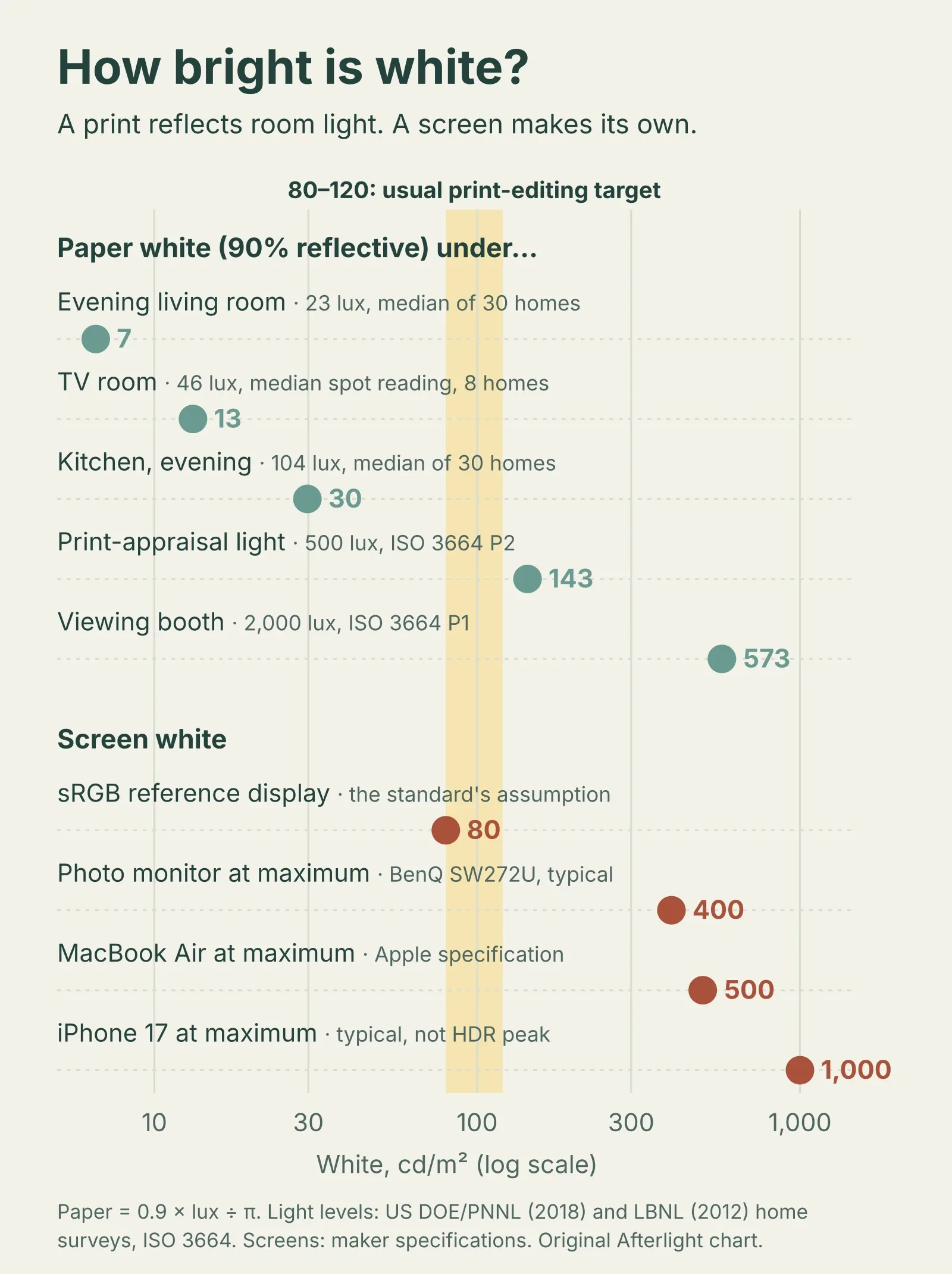
Original Afterlight chart calculated from the formula above, using measured home light levels, ISO 3664 viewing conditions and manufacturers' maximum-brightness specifications. Paper reflectance is assumed to be 90%.
The bright screen does not change the file; it changes the picture you judge while editing. With the screen's white at 400 cd/m², a dark-ish midtone still glows and shadow detail stays easy to see, so the photograph looks finished before its tones are light enough for paper. Printed and seen at a few tens of cd/m², those dark tones lose that glow and separation, and the print reads darker than the edit did. As one reply in Adobe's community forum puts it: "if the screen is bright then you'll be making dark images when editing and prints will be dark too."
Is it brightness or colour management?
Look at the print beside the screen under good light.
- Darker all over, colours right: the screen is too bright for print editing. Match it to paper, below.
- Also off-colour, muddy or oversaturated: colour management is involved. Check that only one of the editing application and the printer driver manages colour, never both; that the ICC profile matches the paper and the media type set in the driver; and, for a lab, that you used the colour space or profile it asks for. A calibrated screen will not fix these.
- Highlights fine, shadows blocked or grey: the paper's black is limiting the print. Soft proof, below.
How to match your screen to paper
You can get close by eye, because the comparison is side by side.
- Set up the light you'll judge prints in. Use a lamp near daylight colour, around 5000 K with high colour rendering, or indirect daylight from a window, aimed at the spot where you'll hold the print. Print-viewing standards use D50, a 5000 K daylight white (ICC display calibration guidance). Warm home bulbs show how the print will look where it hangs, not what is in the file.
- Turn off automatic display changes. Auto-brightness, True Tone and Night Shift on Apple devices, and their equivalents elsewhere, change the screen's white while you work. Turn off HDR mode on Windows for print editing.
- Fill the screen with white. A blank document or an empty white canvas in your editor.
- Hold an unprinted sheet of the paper you print on beside the screen, facing the same way, lit by that lamp.
- Lower the screen's brightness until its white no longer glows next to the sheet. It should look like another sheet of paper.
- Note the brightness setting. Use it whenever you edit for print, then make a test print.
On Apple displays with reference modes, such as Pro Display XDR, Studio Display XDR and recent 14- and 16-inch MacBook Pro models, a custom reference mode lets you set the maximum luminance in nits, which turns the setting into a saved mode.
A colorimeter does this by measurement and is worth buying if you print often, sell prints, edit on several screens or need the same result months apart; set it to the white that matches your viewing light, not its default. For a few lab prints a year, the paper match and a test strip are enough.
Soft proof for what paper can't show
Matching white does not match black. A print's deepest black is set by ink and paper, measured as maximum density (Dmax). Imatest calls 1.7 a good Dmax for matte prints and 2.0 for glossy and luster; WhiteWall's paper list gives 1.48 to 1.8 for its matte fine-art papers and 2.0 to 2.6 for its silk, baryta and high-gloss ones. At a Dmax of 1.7, white is at most about 50 times brighter than the darkest ink, and at 2.6 about 400 times; BenQ's photo monitor is specified at 1000:1. Shadow tones that were separate on screen get squeezed together on paper, which makes the dark areas look flatter and muddier, and matte paper shows it most.
Soft proofing shows this before you print. In Lightroom Classic, turn on Soft Proofing in the Develop module, choose the ICC profile for your printer and paper, and tick Simulate Paper & Ink; then create a proof copy and lift the shadows or midtones there, leaving the original edit alone (Adobe: Soft proof photos). In Photoshop, View > Proof Setup > Custom does the same, with Simulate Paper Color.
Compare the two rendering intents while proofing, because they decide how the shadows are squeezed. Perceptual compresses the whole tonal range to fit the paper; relative colorimetric keeps in-range tones as they are and, with black point compensation ticked, maps tones darker than the paper's black into it instead of blocking them up. Print with whichever intent keeps the shadow detail this photograph needs.
If you can't change the screen
On a laptop you can't dim reliably, or for a lab order, lighten a print copy instead of the original. Lightroom Classic's Print module has Print Adjustment brightness and contrast sliders that apply only to the print and don't show on screen (Adobe: Print job options). In any editor, a virtual copy or adjustment layer reserved for printing does the same job. Find the amount with a test strip: print one crop of the photograph at several brightness steps on the paper you'll use and pick the step that looks right under the light where the print will hang.
Where the 80 to 120 cd/m² advice comes from
Most print advice gives a screen brightness of 80 to 120 cd/m²: Image Science's BenQ-sponsored article for Photo Review and the ink and paper supplier Farbenwerk both give that range. The paper-white calculation explains it: the right screen white is the white of your paper under the light you judge prints in.
| Light where you judge the print | Paper white at 90% reflectance |
|---|---|
| 100 lux, an evening kitchen | about 29 cd/m² |
| 200 lux | about 57 cd/m² |
| 300 lux, a well-lit desk | about 86 cd/m² |
| 400 lux | about 115 cd/m² |
| 500 lux, ISO 3664's P2 appraisal light | about 143 cd/m² |
So 80 to 120 cd/m² matches paper under roughly 280 to 420 lux. The colour-management standards land higher because they assume brighter, controlled light: the International Color Consortium recommends 160 cd/m² for soft proofing, and ISO 12646 notes that 160 cd/m² corresponds to a perfect white under ISO 3664's 500-lux P2 appraisal condition (P1, for critical comparison, is 2,000 lux). The original sRGB proposal assumed only 80 cd/m² in a dim 64-lux room. Few people want to edit at 20 or 30 cd/m², the white of paper in an ordinary evening room, which is why the fix is brighter light for judging prints, not an ever dimmer screen.
How this answer was made: AI-assisted desk research from ISO 12646, the ICC, the sRGB specification, two measured studies of home lighting, Imatest and WhiteWall density figures, and Apple and BenQ specifications. The paper-white figures are Afterlight's calculations, assuming 90% reflectance. No prints were made and no screens were measured for this answer.
← All answersAfterlight